
How to Connect Cable Modem to Wifi Router: A Practical Guide
Connect the modem to the router’s WAN port, then activate the modem and configure Wi-Fi. how to connect cable modem to wifi router explained for a clear setup in November 2026.
 By Victor Takahashi
Updated November 19, 2026

A cable modem connects your home to your internet provider, and a Wi-Fi router shares that connection with your devices. For how to connect cable modem to wifi router, use an Ethernet cable between the modem’s Ethernet port and the router’s WAN or Internet port, then power the equipment on and complete any required activation or setup.
The exact process depends on whether you have separate modem and router units or a combined modem-router gateway. A gateway already contains both functions, so connecting a second router may require a different configuration and can create a second network if left in its default mode. Check the labels on the equipment and the instructions from your internet provider before changing connections. This helps prevent confusion about which device supplies Wi-Fi and where the incoming cable service belongs.
For a separate setup, the modem must be suitable for your cable service, and the router needs a working internet-facing port. Connecting the cables does not itself guarantee internet access: provider activation, service status, modem synchronization, router settings, and Wi-Fi configuration can all matter. The available products include both a combined modem-router and an adapter that connects a wired device to Wi-Fi, so they do not all serve the same role. Identifying the equipment first makes the next steps clearer.
| Award | Product | Mesh WiFi Routers Score About Mesh WiFi Routers ScoreMesh WiFi Routers Score is a comparison aid based on available product information, not a hands-on testing result. Read our review methods. | |
|---|---|---|---|
| Best Overall |
NETGEAR Nighthawk DOCSIS 3.1 Modem Router Combo
|
8.8/10 | Buy |
| Best Budget |
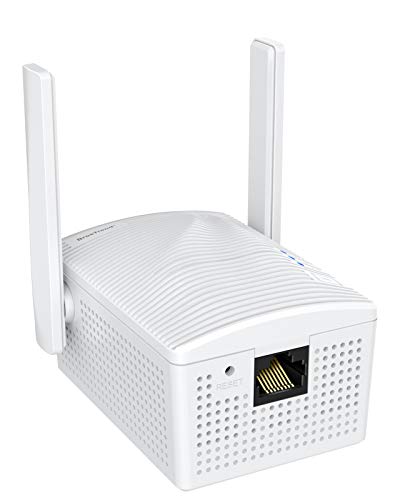 BrosTrend AC1200 WiFi to Ethernet Adapter Dual |
8.3/10 | Buy |
|
NETGEAR Nighthawk Modem Router Combo (CAX30)
|
8.0/10 | Buy |
Connect a Separate Cable Modem and Wi-Fi Router
For separate devices, connect the cable service to the modem and connect the modem’s Ethernet output to the router’s WAN or Internet input. Then allow the modem to connect to the provider, start the router, and complete activation or configuration as needed. A cable modem and a Wi-Fi router perform different jobs, even when they are sold together in one enclosure. Keeping those roles straight is the key to setting up the network and diagnosing a connection that does not come online.
Use the modem’s status indicators and the router’s setup instructions as clues, not as proof that every part of the service is working. A link between the two devices can be present while the modem is not provisioned, the provider has an outage, or the router has not finished configuration. Internet speed and wireless coverage depend on the service, equipment, placement, home construction, connected devices, and settings. No cable arrangement can compensate for an inactive service plan or a modem that the provider does not support.
These checks help identify the right equipment and connection points before you begin.
- Confirm that the service entering the home is cable internet, not a different connection type.
- Check provider documentation for modem compatibility and any required activation process.
- Identify the modem’s Ethernet output and the router’s labeled WAN or Internet port.
- Use an Ethernet cable in good condition that reaches without straining either connector.
- Decide whether the modem and router are separate units or one combined gateway.
Identify the modem, router, and service connection
The cable modem receives the provider’s cable connection and translates it into a network connection that can be shared. A standalone router takes that connection and manages the home network, including Wi-Fi and, if provided, wired Ethernet connections for local devices. The modem’s coaxial cable connection is not interchangeable with the router’s WAN port. In a separate setup, the Ethernet link between those devices carries the modem’s network connection to the router.
A modem-router combo, also called a gateway, combines these functions in one device. It typically receives the provider’s cable connection and provides routing and Wi-Fi without needing a separate router for those tasks. A second router can sometimes be used with a gateway, but the arrangement depends on the gateway and router features and settings. Consult the manufacturers’ instructions and the provider’s guidance before connecting an additional router.
Product descriptions can also refer to equipment that does not connect a modem to a router. For example, the BrosTrend AC1200 WiFi to Ethernet Adapter Dual is described as a bridge for connecting an Ethernet-enabled device to Wi-Fi. That is a different function from routing a cable modem’s internet connection through a home Wi-Fi network. Look for the stated role of a device rather than assuming that any product with Ethernet and Wi-Fi in its name replaces a router.
Prepare the cable connection and Ethernet link
Place the modem and router where their cables can connect without tension, while leaving ventilation openings unobstructed. Follow the manufacturers’ placement and handling instructions, especially around power connections. Connect the incoming cable service to the modem as directed by the provider or modem instructions. If your provider requires a filter, splitter, or other specific arrangement, use its guidance rather than improvising a connection.
Next, connect one end of an Ethernet cable to the modem’s Ethernet port and the other end to the router’s WAN or Internet port. Router manufacturers may use different labels, so check the device markings and setup guide if the port names are unclear. Avoid using a LAN port for the modem connection unless the router’s instructions explicitly direct you to do so. LAN ports are generally for wired devices inside the home network, while the WAN port receives the internet connection.
Use the equipment’s supplied power adapter and the manufacturer’s directions when connecting power. Don’t open a modem, router, or power adapter, and don’t modify electrical equipment to make a connection fit. Keep cords and equipment arranged so they are not crushed, pulled, or placed where ventilation is blocked. If a cable, connector, or adapter appears damaged, stop and consult the relevant provider or manufacturer for next steps.
Power on the modem before configuring the router
Once the cables are connected, follow the manufacturers’ recommended startup order. In a typical separate arrangement, the modem needs time to establish a connection with the provider before the router can use that connection. Check the modem’s indicators and manual for the meaning of its status lights; colors and patterns vary by model. If the modem does not reach the state described in its instructions, the issue may involve the cable service, activation, signal, or modem rather than Wi-Fi settings.
After the modem has completed its connection process, power on the router if it is not already running. Use the router’s app or web-based setup method only as its manufacturer describes. The setup may ask you to create a network name and password, choose configuration options, or complete an internet connection check. Don’t assume that every router uses the same interface or that a particular sequence applies to every model.
Some providers require customers to activate or register a modem before internet access becomes available. The process may involve the provider’s website, app, or support channel, and the requirements can vary. A router’s setup screen may report that there is no internet until this step is complete. Use provider instructions for provisioning instead of repeatedly changing router settings when the modem has not been authorized for the service.
Configure Wi-Fi and protect router administration
Once the router is online, set a network name and a strong Wi-Fi password using the manufacturer’s setup process. Choose the security options the router supports and follow current guidance from its manufacturer and provider. Keep the administrator password separate from the Wi-Fi password where the setup allows it, and don’t share administrator credentials with guests. Router administration controls settings that can affect every device on the home network.
Use the router’s documented method for managing firmware and security settings. Updates can address software issues, but the update process and available support differ among devices. Don’t interrupt an update or reset the router unless the instructions explain how to do so. A factory reset can erase customized network settings, so check the manufacturer’s directions and be prepared to configure the network again if a reset is truly needed.
A guest network can keep visitors’ devices separate from the main network when the router supports that feature. The available setup varies, so verify the guest network’s access and security settings in the router’s documentation. Wi-Fi encryption protects the wireless connection, but it does not replace security updates, safe passwords, or security practices on individual phones, computers, and other devices. No router configuration should be treated as a guarantee against every online threat.
Use this verification list after setup so you can separate a Wi-Fi issue from a modem or service issue.
- Check that the modem’s indicators match the connected state described in its instructions.
- Confirm that the Ethernet cable joins the modem to the router’s WAN or Internet port.
- Check the router’s status page or setup app for an internet connection indication.
- Connect one device to Wi-Fi and confirm it joins the intended network.
- If available, test a wired device at the router to help isolate wireless problems.
- Confirm provider activation before changing advanced router settings or repeating setup.
Trace connection failures from the service inward
If the modem shows no provider connection, inspect the service cable and connectors without opening equipment or changing provider-side wiring. Check for a local service interruption and confirm that the modem is activated for the account. The provider can confirm service status and whether the modem is accepted for the plan. A router reset is unlikely to resolve a problem that occurs before the modem establishes service.
If the modem appears online but the router reports no internet, check the Ethernet cable at both ends and verify that it is connected to the intended ports. A damaged cable, loose connector, wrong port, incomplete router setup, or an equipment-specific configuration can interrupt the link. Try another suitable Ethernet cable if one is available and follow both manufacturers’ guidance. Avoid changing several settings at once, since that can make it harder to identify what corrected or worsened the issue.
If wired access works but Wi-Fi does not, focus on the router’s wireless configuration and the device joining the network. Confirm the network name and password, check whether wireless access is enabled, and make sure the device is within a usable signal area. Interference, walls, distance, device limitations, and router placement can affect wireless results. Moving the router may help if placement contributes to the problem, but coverage cannot be guaranteed from the connection method alone.
If both wired and wireless devices lose access, consider the modem, router, service, and their connection rather than assuming that a single device is at fault. Note which status indicators change and whether the interruption affects all devices or only one. Restart equipment only as the manufacturers or provider direct, since repeated power cycling may not address an outage or activation problem. Contact the provider for service-side issues and the equipment manufacturer for device-specific instructions.
Account for gateways and a second router
When a provider supplies a gateway, check whether it already provides routing and Wi-Fi before adding another router. Connecting a second router without considering the gateway’s configuration can result in separate Wi-Fi networks or routing arrangements that complicate device access and troubleshooting. Some setups support a documented bridge or access point mode, but the right choice depends on the equipment and the provider’s service. Don’t assume that a setting available on one model exists on another.
A standalone cable modem does not provide Wi-Fi by itself unless it is also a router or gateway. Conversely, a standalone Wi-Fi router does not replace the cable modem’s role in connecting to cable internet. If equipment labels or service instructions leave the roles uncertain, ask the provider to identify the modem or gateway and explain its approved connection arrangement. That clarification can prevent buying or configuring equipment that does not address the actual need.
Keep performance expectations tied to the whole connection
A completed cable connection does not promise a particular Wi-Fi speed or signal throughout a home. The internet plan and provider, modem capability, router configuration, home layout and construction, interference, and connected devices all influence results. A wired connection can help determine whether a slowdown is limited to Wi-Fi, but it does not by itself identify every possible cause. Compare the observed issue with the provider’s service information and equipment documentation before deciding that a different router is necessary.
For a fair check, test a device near the router and, if practical, compare it with a wired connection while noting that device capabilities and test conditions matter. A weak signal in one room may point to placement or the home’s layout rather than a modem-to-router wiring fault. Repositioning equipment can be considered within manufacturer instructions, with ventilation kept clear. More equipment is not automatically the answer if the provider connection, activation, or existing configuration is the actual problem.
Keep the final check simple: confirm the modem is online, the Ethernet link reaches the router’s WAN or Internet port, and a device can join the configured Wi-Fi network. If one of those checks fails, use the status information and provider or manufacturer guidance to locate the problem before changing equipment.
About the author

Victor Takahashi is a product writer covering mesh Wi-Fi routers and whole-home wireless networking. Victor focuses on turning specification sheets and published test data into clear comparisons that help readers match a product to their budget and needs.