
How to Connect to Wifi Using Router: Router Setup Guide
A clear guide to connecting a device through a router, checking its Wi-Fi settings, and solving common connection problems. Updated November 2026.
 By Tessa Castellano
Updated November 19, 2026

A phone or laptop can join home Wi-Fi once the router is online and you have the correct network name and password. How to connect to wifi using router depends on whether the router is already configured or still needs an internet connection and initial setup.
For an existing network, connect the router to its modem or gateway, turn on Wi-Fi, then select the network on your device and enter its password. A router creates the local network, while a modem or gateway connects that network to the internet service; some homes have these functions in one device. If the device joins Wi-Fi but cannot reach websites, the issue may involve the modem, service, router configuration, or the device rather than the Wi-Fi password.
| Award | Product | Mesh WiFi Routers Score About Mesh WiFi Routers ScoreMesh WiFi Routers Score is a comparison aid based on available product information, not a hands-on testing result. Read our review methods. | |
|---|---|---|---|
| Best Overall |
NETGEAR Nighthawk WiFi 6 Router R6700AX
|
8.8/10 | Buy |
| Best Premium |
 Keep Connect MAX Router Rebooter |
8.8/10 | Buy |
| Best Budget |
 TP-Link AC1200 Gigabit Dual Band WiFi Router |
8.4/10 | Buy |
| Best Value |
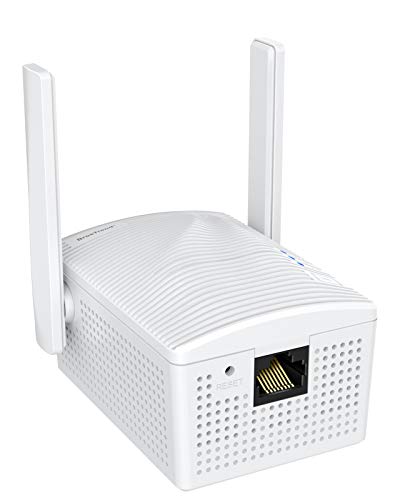 BrosTrend AC1200 WiFi to Ethernet Adapter Dual |
8.3/10 | Buy |
 Amazon eero 6+ mesh wifi router |
8.1/10 | Buy | |
 TP-Link WiFi Travel Router (WiFi 5) |
7.8/10 | Buy |
Connect a device to a router’s Wi-Fi network
To connect, identify the active Wi-Fi network, select it on the device, enter the network password, and confirm that the device can reach the internet. If the router has not been set up, first connect it to the appropriate modem or gateway and follow the manufacturer’s instructions to configure the network.
Keep the distinction between joining Wi-Fi and getting internet access in mind. A device can communicate with the router locally even when the router has lost its modem connection or the internet service is unavailable. The checks below help identify which part of the connection needs attention before you change settings.
Check these details before troubleshooting a failed connection:
- Confirm that the router is powered and its Wi-Fi function is enabled.
- Use the network name and password configured for this router.
- Check whether the modem or gateway has an active connection to the router.
- Make sure the device is within a usable Wi-Fi signal area.
- Look for a device-specific setting that could disable wireless connections.
Identify the router, modem, and internet connection
A router manages connections among devices on a home network and provides Wi-Fi when wireless functionality is enabled. A modem connects to the internet service through the connection type provided at the home, while a gateway combines modem and router functions in one unit. Some internet setups use a separate modem and router, so identify what equipment is already installed before connecting cables or changing settings.
If the home has a separate modem and router, the router’s internet or WAN connection generally links to the modem’s network connection. Use the ports and cabling described in the equipment manuals rather than assuming every port has the same role. A router with no modem connection may still broadcast Wi-Fi, but joining that network alone does not establish internet service.
Some provider gateways already create Wi-Fi. Adding a standalone router to one can create a second network or require a configuration choice, depending on the equipment and service. Don’t change bridge mode or other advanced settings unless the provider or equipment instructions call for it; an incorrect change can interrupt access or make administration harder.
Prepare the router and network details
Before connecting a new device, find the network name, also called the SSID, and the corresponding Wi-Fi password. The router label or setup documentation may show the original details, but a previous owner or administrator may have changed them. If the current name or password is unknown, check the router’s administration interface or the person who manages the network rather than guessing repeatedly.
Use the manufacturer’s setup instructions for a router that has not been configured. Depending on the model, setup may use a browser or an app, and the exact screens and sequence differ. Have the internet service and modem details available if the setup process requests them, but don’t assume every provider requires the same information.
Place the router in an open location where it can receive power and connect to the modem or gateway. Avoid blocking its ventilation, and follow the manufacturer’s placement and handling guidance. Walls, floors, nearby equipment, interference, and the home’s layout can affect how well Wi-Fi reaches devices, so a connection near the router may differ from one farther away.
Join the Wi-Fi network from a phone, computer, or tablet
Open the device’s Wi-Fi or network settings and make sure wireless networking is enabled. Find the router’s network name in the available networks list, select it, and enter its password when prompted. Passwords are case-sensitive, so check capitalization and any characters that could be mistaken for one another.
Some routers show separate network names for different frequency bands, while others present one name and manage band selection automatically. If more than one familiar name appears, use the one configured by the network administrator or indicated in the router’s instructions. Device support and router settings can affect which networks appear, so don’t assume every device will show every band.
A device may ask whether to remember the network. Saving it can make later connections simpler, but only do so on a device you control, particularly on a shared or public computer. If the device reports that the password is incorrect, remove a stale saved network entry if the device offers that option, then select the current network and enter its current password again.
Once joined, open a familiar website or app to check access. A Wi-Fi symbol usually indicates a wireless link to the router, not proof that the internet service is working. If pages do not load, compare the same task on another device and check the modem or gateway connection before changing the Wi-Fi credentials.
Check the connection without confusing Wi-Fi and internet access
Connection status can reveal whether the device joined the wireless network, but it may not explain why internet access is missing. Test a second device on the same Wi-Fi network, then check whether a wired device connected to the router can access the internet if one is available. If all devices are affected, investigate the router, modem, and service connection; if only one is affected, focus on that device’s settings.
Use this sequence to narrow down the problem:
- Confirm the device displays the intended Wi-Fi network as connected.
- Re-enter the current password if authentication fails.
- Check another device to see whether the issue is shared.
- Inspect the modem and router connections using their status indicators and manuals.
- Check with the internet provider if service appears unavailable across the home.
If the network name is missing, check that the router is powered and wireless networking is enabled. A hidden network may not appear in the standard list, but don’t change the router’s broadcast settings simply to test a connection unless you understand the effect. The manufacturer’s instructions can explain how to view or configure the network safely.
Resolve password, saved-network, and signal problems
An incorrect-password message often points to a typing error, a changed password, or a saved entry that no longer matches the router. Verify the exact network name, check capitalization, and ask the network administrator whether the password changed. Avoid resetting the router as an early response, because a reset can erase configuration and require the network to be set up again.
A connection that works near the router but drops in another room may involve placement, obstacles, interference, or the device’s wireless capability. Move closer temporarily to see whether the connection changes, then consider whether the router is obstructed or positioned far from the area in use. Moving the router may help if placement is contributing to the problem, but actual coverage varies with the building and configuration.
If one device repeatedly disconnects while others remain online, restart its Wi-Fi connection using the device’s normal settings and check for device-specific network controls. A saved network profile, software issue, or wireless hardware problem may be involved. Avoid assuming the router is defective until another device has been checked on the same network.
Choose a suitable network and protect access
Use the network intended for your household rather than a similarly named neighbor’s network or an unfamiliar guest network. Guest access can separate visitors from the main network when the router supports it, but the available controls vary by model. Ask the network administrator which network to use if the intended name is unclear.
Keep the Wi-Fi password distinct from the router administrator password. The Wi-Fi password controls network access, while the administrator credentials govern router settings. Don’t share administrator credentials with guests or expose remote administration to the internet as a routine way to make setup easier.
Use the security options supported by the router and connected devices, and follow the manufacturer’s guidance when configuring them. Don’t disable encryption, firewall protections, or software updates as a general troubleshooting shortcut. Wi-Fi security helps protect access to the wireless network, but it does not replace security updates and protections on phones, computers, and other connected devices.
Firmware updates can address software issues or security concerns, but update procedures differ by manufacturer. Use the official administration controls and instructions, and don’t interrupt a process if the guidance says to let it finish. If a reset or update could remove important settings, check the manual or provider guidance before proceeding.
Know when another component may be responsible
A router is only one part of the path between a device and an online service. The internet plan, provider service, modem, gateway configuration, Ethernet connection, router, Wi-Fi environment, and client device can each affect the result. A new router cannot necessarily correct an outage or a fault elsewhere in that chain.
If every device loses internet access at once, note whether the router still broadcasts Wi-Fi and check the modem or gateway according to its status lights and documentation. If the provider reports an outage, local Wi-Fi changes are unlikely to restore the service. If wired access works but wireless access does not, focus on Wi-Fi settings, interference, placement, or device compatibility instead.
For a single device that cannot see or join the network, verify that its wireless feature is enabled and that it supports the network settings in use. The supplied product information does not establish compatibility for every possible device or router configuration. Consult the device and router documentation when a standard or security setting appears to be a mismatch.
Make changes carefully and verify the result
Change one setting at a time so you can tell which adjustment affected the connection. Record existing network details before making a configuration change, and use the router’s documented controls rather than opening its case or power adapter. Keep equipment ventilated and follow the manufacturer’s electrical and handling instructions.
After a change, reconnect the device to the intended Wi-Fi network and test an ordinary online task. Check whether other household devices remain connected and whether the modem or gateway still reports service. If the change makes access worse, use the documented way to restore the previous setting rather than trying unrelated options at random.
When basic checks do not resolve the issue, contact the internet provider for service or modem questions and the router manufacturer for model-specific setup guidance. Give support the observable details, such as whether one device or all devices are affected and whether Wi-Fi remains visible. This keeps the next step focused on the part of the connection that is actually failing.
For a normal connection, confirm that the device is on the correct network, accepts the current password, and can reach an online service. If it joins Wi-Fi without internet access, check the modem, provider service, and other devices before resetting or replacing equipment.
About the author

Tessa Castellano covers Outdoor WiFi and Whole-Home WiFi for readers who want practical setup advice. Tessa concentrates on requirements and common limitations, and on explaining them in plain language.